
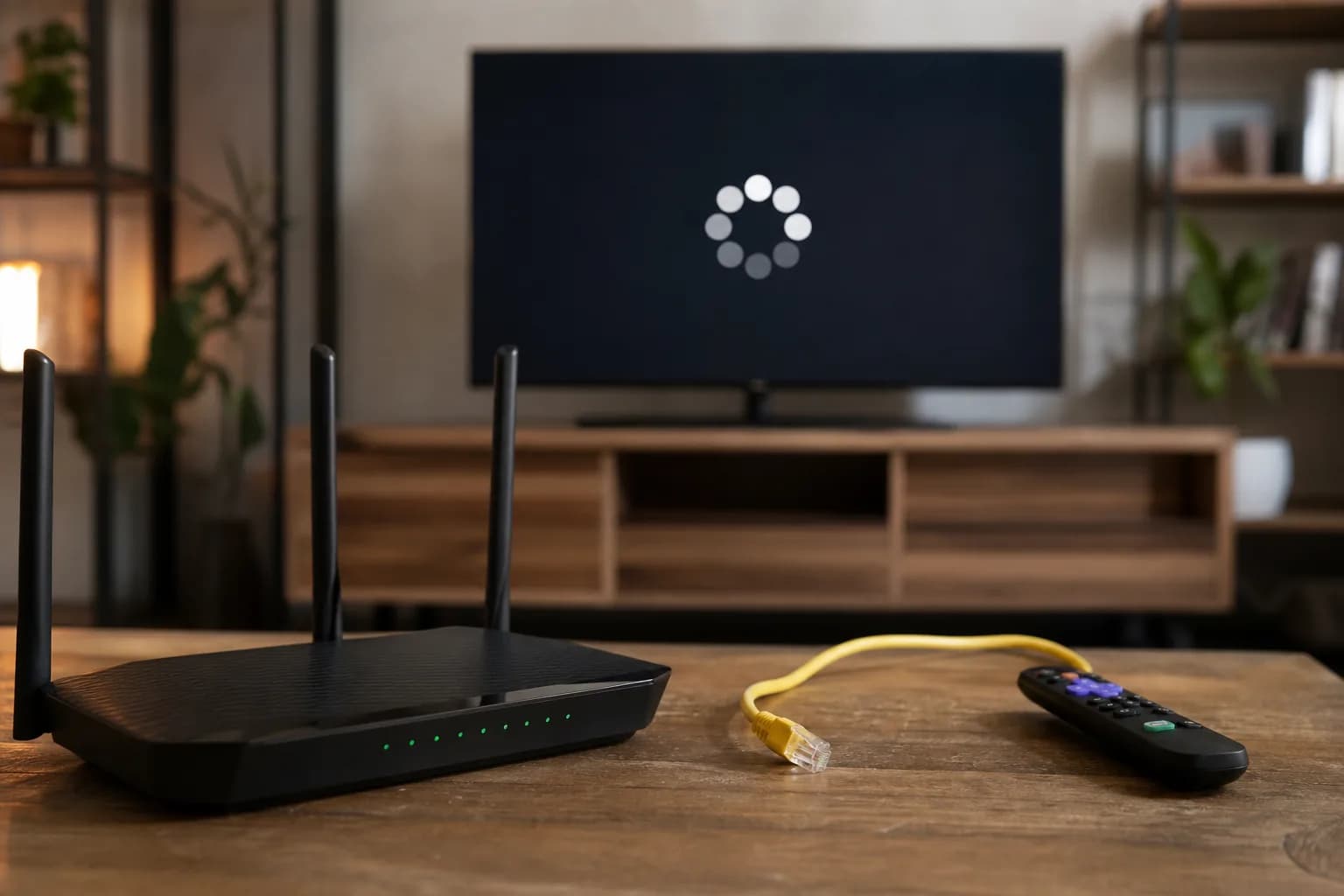
IPTV buffering can originate from the stream source, your home internet connection, the Wi-Fi signal, the device, or the player app. A speed test alone cannot identify which layer failed, because it does not test the channel, route, Wi-Fi stability, device load, or app behaviour at the moment playback pauses.
Start by narrowing the problem instead of changing several things at once. The IPTV setup readiness checker can help you review your device, connection, and household streaming conditions before you change a plan or replace equipment.
IPTV Buffering: The Five Places to Check
Buffering is a player waiting for more video data. That wait can be caused by different parts of the viewing path, so each check answers a different question.
- Stream source: a specific live channel, event, or route may be busy or unstable while other content works normally.
- Home connection: the connection to your home can be affected by congestion, a modem issue, or other downloads and streams.
- Wi-Fi: distance, walls, interference, and crowded wireless networks can interrupt delivery even when an internet speed test looks good.
- Device: a Firestick, Smart TV, or TV box may be low on storage, running hot, or managing too many background tasks.
- Player app: an outdated app, a damaged cache, or an app-specific setting can affect one player without proving a service-wide fault.
Work from the quickest comparison to the more involved checks. Keep a note of the time, channel, device, and connection used; it makes a pattern easier to spot and gives support useful facts if you need help.
First, Find Out Whether One Channel or Everything Buffers
Try three or four different live channels, then try on-demand content if it is available. If only one channel buffers, avoid treating it as proof that your whole internet connection or device has failed. A channel-specific issue can be upstream of your home.
If every channel pauses on one device, repeat the same test on another device on the same network. If both devices pause at the same time, check the home connection and Wi-Fi next. If only one device pauses, focus on that device and its app before changing router or subscription settings.
Do not judge from a single pause during a major live event. Test a few channels over several minutes so a short source-side interruption is not mistaken for a permanent setup problem.
Check Wi-Fi Before Buying Faster Internet
Run a speed test near the device that buffers, not only beside the router. Then repeat the playback test with the device closer to the router or connected by Ethernet, where that is practical. A large difference between those tests points to the local Wi-Fi path rather than the internet plan.
Restart the router only after noting the symptom, and check whether the device is on the intended Wi-Fi network and frequency band. For Fire TV devices, Amazon's Fire TV troubleshooting guidance also covers network and restart checks. Do not move router settings around blindly; record the original setting first, especially in a shared household.
Many homes have several simultaneous demands on the connection: video calls, cloud backups, game downloads, and other streams. Netflix lists 5 Mbps for Full HD and 15 Mbps for Ultra HD in its Netflix speed recommendations, but those figures are service recommendations rather than a diagnosis of IPTV buffering. Leave headroom and test under your normal household load.
Restart in the Right Order
A restart can clear a temporary connection or app state, but it is most useful when you do it in an order that isolates the problem. First close the IPTV app fully. Then restart the streaming device. If the problem remains across devices, restart the router or modem according to your internet provider's instructions and wait until the connection is fully restored.
- Close the player app and reopen it after a minute.
- Restart the device and test the same channel again.
- Only then restart network equipment if the issue appears on more than one device or app.
- After each step, test the same content and note whether the result changed.
A reboot is a test, not a cure-all. If it helps only briefly, look for a repeatable condition such as evening congestion, weak Wi-Fi in one room, or a device that is running out of space.
Check the Device and IPTV App
On the affected device, install available system and app updates, then check free storage. A nearly full device can struggle with app updates, cache files, and background processes. If the device feels unusually warm, give it time to cool and make sure it has airflow before retesting.
Use the app's normal sign-out, cache-clear, or reinstall options only when you have your login or playlist details available. Clearing data can remove local settings. If a different compatible player works on the same device and network, that comparison suggests an app setting or app state is worth investigating; it does not by itself prove the original app is defective.
For a device-specific setup check, see the IPTV for Firestick guide or the Smart TV setup guide. Follow their preparation steps before assuming your device needs replacement.
Test at Peak Viewing Time
Test once when the household is quiet and once when you normally watch, such as evening or during a popular live event. Keep the channel, device, and room the same where possible. If buffering appears mainly at busy times, check for other household traffic first, then share the times and affected channels with your provider or support team.
This comparison can reveal a pattern without claiming a single cause. Network congestion may occur outside your home, while local demand, Wi-Fi interference, and a busy channel can also become more noticeable at the same time.
When a VPN Helps and When It Adds Delay
A VPN can change the route between your device and a streaming service. That may be useful for a specific privacy or routing need, but it also adds another connection layer and can reduce available throughput or increase delay. It is not a general buffering fix.
Test with the VPN on and off only when doing so is appropriate for your service and local requirements. Change one condition at a time, use the same channel and device, and keep the result that is more stable for your setup. Do not assume a different country location will improve streaming.
A Five-Minute Buffering Checklist
- Test several channels and note whether the issue is one channel or everything.
- Repeat on a second device if one is available.
- Test near the router or with Ethernet where practical.
- Close the app, restart the affected device, and test again.
- Check app updates, device updates, free storage, and device temperature.
- Pause downloads, cloud backups, and extra household streams for one test.
- Compare a quiet-time test with a normal peak-time test.
- Record the affected channel, time, device, app, and network connection before asking for support.
If you are still deciding whether to start a trial, the IPTV free trial checklist explains how to test the channels and device you actually plan to use.
Can Managed Routing Help with IPTV Buffering?
Routing is the path streaming data takes through networks toward your device. If part of that delivery path has a problem, changing a route may help. But a pause on screen does not identify which part failed, and changing routing cannot repair weak Wi-Fi or an overloaded player device inside your home.
MoviesNova Premium Plus includes streaming routing managed by our team. That gives the team control over routing adjustments when connection issues arise. It is not a claim of automatic failover, a particular network vendor, guaranteed recovery times or uninterrupted service.
Give Support Evidence They Can Act On
Before reporting a suspected routing problem, collect the channel, approximate time, device, player, connection type and whether other channels also paused. Include the outcome of any safe comparison you already made, such as another device on the same network. Describe what happened rather than declaring that your internet provider is blocking the service.
- One room only: investigate that room's signal and device before blaming a service-wide route.
- One channel only: record the channel and time; the source or its delivery may need investigation.
- Several devices and channels: provide the shared pattern to support while checking household network activity.
These are clues, not conclusive diagnoses. Avoid changing several settings or buying a VPN at once: it becomes harder to know what changed the result. A useful support process narrows the possibilities and tests one change at a time.
See Premium Plus versus Performance for the plan context and the premium IPTV page for the offering. If you are evaluating a new service, request a trial and use the same device and viewing conditions that exposed the original issue.
IPTV Buffering Questions
Does a fast internet plan guarantee no buffering?
No. The stream source, route, Wi-Fi signal, device performance, player app, and other household activity can all affect playback. Speed is one useful measurement, but it is not a complete diagnosis.
Why does IPTV buffer on Wi-Fi but not near the router?
That pattern can indicate signal loss, interference, or congestion on the local wireless network. Test from the usual viewing room, move closer to the router for a comparison, and use Ethernet where it is a practical option.
Should I replace my Firestick or Smart TV?
Not before testing updates, storage, temperature, and the same content on another device. Replacing hardware may be reasonable when a device is no longer supported or cannot run the needed app reliably, but a comparison test is more useful than guessing.
What should I send to support?
Send the channel or content name, approximate time, device model, app name, connection type, whether other channels worked, and the results of your second-device or near-router test. Those details help distinguish a source-side issue from a local setup issue.
Before making a purchase decision, use the IPTV setup readiness checker to review the conditions you can control. It cannot guarantee stream performance, but it can help you start with a clearer baseline.