
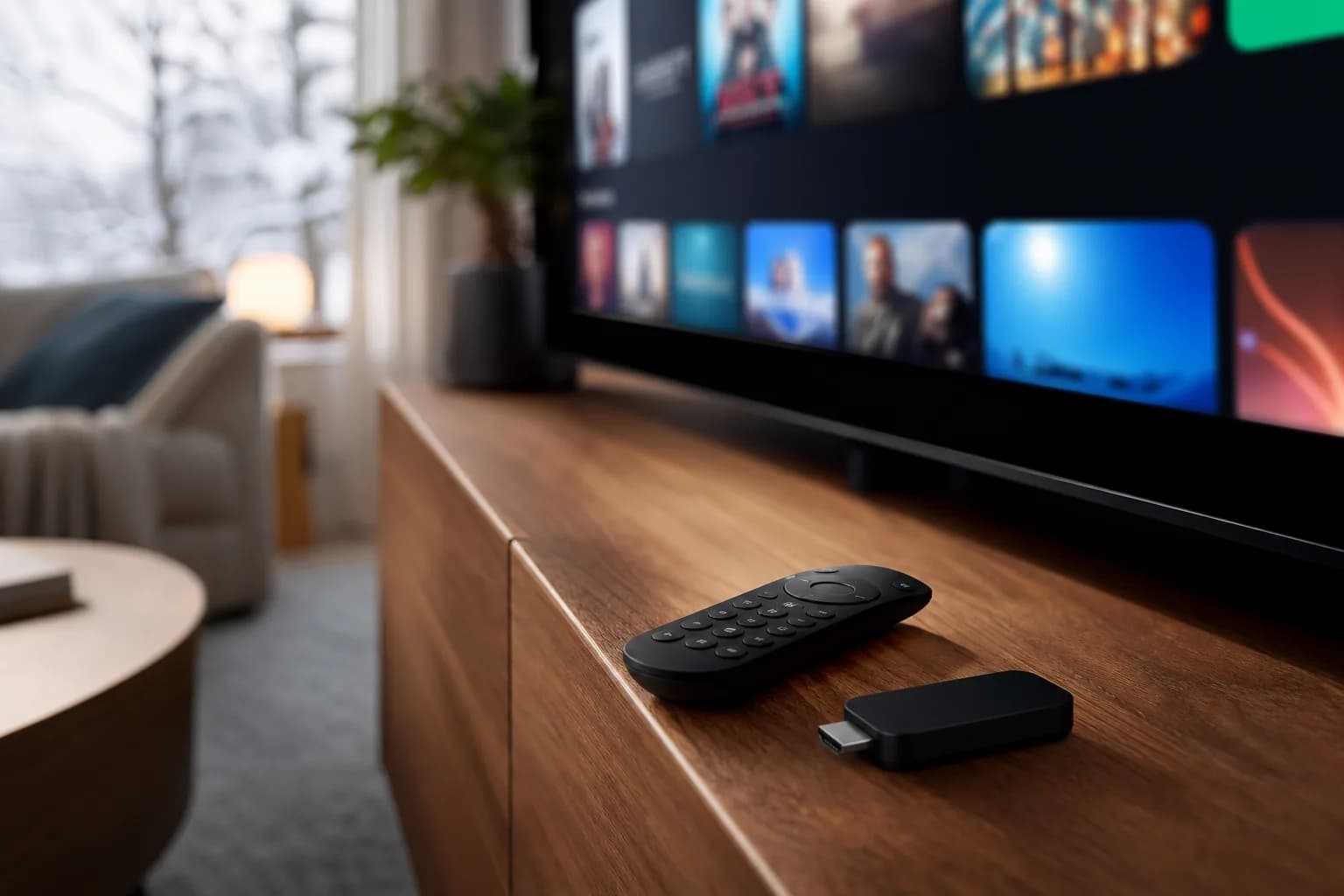
IPTV for Firestick Canada — Complete 2026 Setup Guide
The Amazon Firestick is a compact streaming device that can run a compatible IPTV player on a TV with an HDMI port. Combined with MoviesNova IPTV, it lets you test the live channels, sports, movies, and series available to your account. Available picture quality depends on the Firestick model, television, app, source content, and connection.
New to MoviesNova? Review how the 24-hour IPTV free trial in Canada works, then request your trial before choosing a paid plan. No credit card is required. You can leave the app and device fields blank if you need setup advice.
Why Firestick Is the Best Device for IPTV in Canada
Canadian IPTV viewers often consider the Amazon Firestick for several practical reasons:
- Price choices: Amazon Canada pricing and model availability change, so compare the current listing before buying
- Portable: Take it anywhere — hotels, cottages, friends' houses
- Resolution choices: 4K-capable models can output higher-resolution content when the TV, app, and source also support it
- Easy setup: Plug in, connect to Wi-Fi, and install the MoviesNova app
- Voice control: Use Alexa to search for channels, movies, and shows
- App support: Access Netflix, Prime Video, Disney+, and MoviesNova all on one device
Which Firestick Model Should You Buy?
Amazon sells several Firestick models in Canada. Here's which one we recommend for IPTV:
- Fire TV Stick Lite — Budget option, HD streaming, great for bedrooms
- Fire TV Stick — Full HD with TV controls, good all-rounder
- Fire TV Stick 4K — A 4K-capable option for compatible televisions and content
- Fire TV Stick 4K Max — A higher-performance 4K-capable option where currently available
- Fire TV Cube — A higher-tier Fire TV option for viewers who want its additional device features
Choose a currently supported model that matches your television resolution and required apps. A 4K-capable Firestick makes 4K output possible, but it does not guarantee that every channel or title is available in 4K.
Before installation, use the IPTV setup readiness checker to review your Firestick, app status, connection, quality target, and expected simultaneous streams.
How to Install MoviesNova IPTV on Firestick
Setting up MoviesNova on your Amazon Firestick takes just a few minutes. Follow these steps:
Step 1: Enable Apps from Unknown Sources
- Go to Settings on your Firestick
- Select My Fire TV (or Device)
- Select Developer Options
- Enable Apps from Unknown Sources (or Install Unknown Apps)
Step 2: Install the Downloader App
- Go to the Search icon on your Firestick home screen
- Type "Downloader"
- Select the Downloader app by AFTVnews
- Click Download and wait for installation
Step 3: Download the MoviesNova App
- Open the Downloader app
- In the URL field, enter the download link provided in your MoviesNova account setup instructions
- Click Go — the app will download automatically
- When prompted, click Install
- Once installed, click Open to launch the app
Step 4: Log In and Start Streaming
- Open the MoviesNova app
- Enter your username and password (provided with your trial or paid account setup instructions)
- Browse channels, movies, and series
- Test your must-have channels and the picture quality available for each stream.
Best IPTV Apps for Firestick in Canada
MoviesNova can use its supplied app or a compatible third-party IPTV player, depending on the login method provided for your account:
- MoviesNova App — An account option when it is included in your setup instructions
- IPTV Smarters Pro — Multi-platform IPTV player
- TiviMate — Premium IPTV player with EPG support
- IBO Player — Clean interface with playlist management
- VLC Media Player — Free, open-source option
IPTV App vs IPTV Provider on Firestick
An IPTV player app displays the account or playlist on your Firestick; the IPTV provider supplies the service access and login details. An app purchase does not automatically include a subscription, and a subscription may still require a separate compatible player.
Before paying for an app, confirm the login method supplied with your account. The IPTV app versus provider guide explains which details and payments belong to each part of the setup.
Troubleshooting Firestick IPTV Issues
If you experience any issues with IPTV on your Firestick, try these solutions:
- Buffering: Connect your Firestick via ethernet adapter for a stable connection, or move closer to your Wi-Fi router
- App crashes: Clear the app cache in Settings → Applications → Manage Installed Applications
- Poor picture quality: Check the source resolution and use a display setting supported by your Firestick and television
- Audio sync issues: Restart the app or try switching audio tracks
MoviesNova support is available through WhatsApp for Firestick setup and troubleshooting questions.
How to Diagnose Firestick Buffering
If playback pauses, first compare several channels, then test the same content on another device or move the Firestick closer to the router. A compatible Ethernet adapter can provide a useful wired comparison, but no connection type guarantees uninterrupted playback.
Close and reopen the player, restart the Firestick, check available storage and updates, and repeat the test during your normal viewing time. Use the IPTV buffering diagnosis guide to separate channel, Wi-Fi, device, app, and household-network causes before changing hardware or plans.
Firestick IPTV in Canada — Pricing
MoviesNova plans work on all Firestick models with no extra device fees:
- 1 Month: $9.99
- 3 Months: $29.99
- 6 Months: $37.99
- 12 Months: $49.99
Channel, VOD, and picture-quality availability can vary by plan and source. Multi-device pricing is available if you want to use MoviesNova on multiple Firesticks in your home; confirm the connection count before ordering.
Firestick IPTV Questions
Which IPTV app should I use on Firestick?
Use a compatible player that supports the login or playlist method supplied with your account. Ask support which option fits your setup before buying a separate app licence.
Is Wi-Fi or Ethernet better for Firestick IPTV?
Strong Wi-Fi can work well, while a compatible Ethernet adapter provides a useful wired comparison when wireless conditions are inconsistent. Test the connection in the room where you normally watch.
Does a 4K Firestick guarantee 4K IPTV?
No. The TV, Firestick, app, source content, account option, and connection all affect the available resolution. Test the specific channels or titles that matter to you.
Can I request a trial without selecting an app?
Yes. Leave the app selection empty if you need a recommendation, and include the Firestick as your device when possible so support can suggest a compatible option.
Can I use IPTV on multiple Firesticks?
You can install compatible players on several devices, but simultaneous playback depends on the connection count you choose. The multiple-device and connection guide explains how to plan and test concurrent streams.
Ready to test your Firestick? Start your free trial or view all plans.