
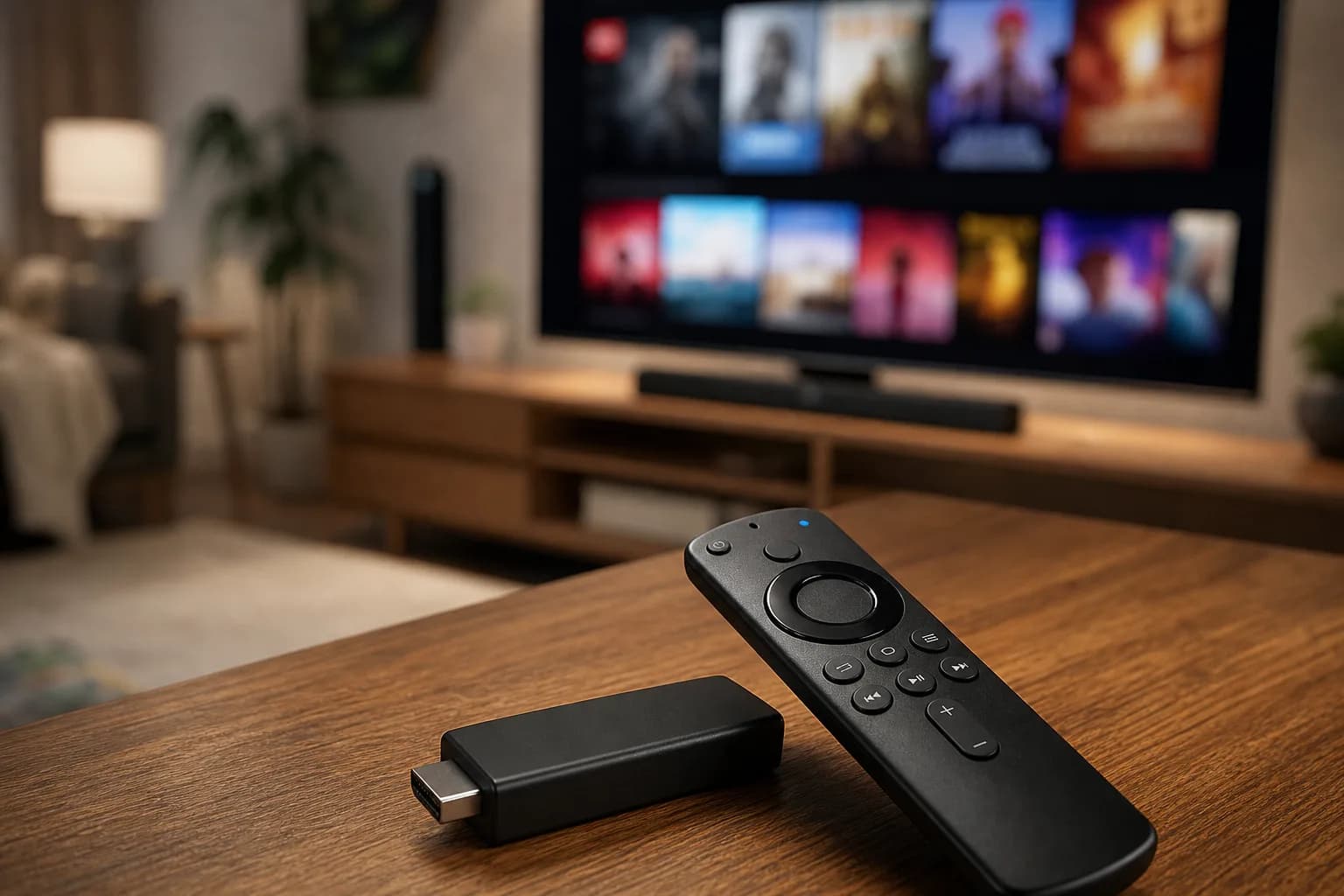
The Amazon Firestick is one of the easiest devices for watching IPTV in Canada. It is affordable, portable, and works on almost any TV with an HDMI port. If you searched for Amazon IPTV or Firestick IPTV Canada, this guide explains how to test the service properly before paying for a subscription.
MoviesNova supports Firestick and Fire TV devices. You can request a free trial, choose Firestick / Fire TV as your device, and get setup help through WhatsApp or email.
Why Firestick is popular for IPTV in Canada
Firestick works well for IPTV because it is small, simple, and widely supported by IPTV apps. Many Canadian households use it as a cable replacement because it does not require a technician, cable box, or long contract.
- It works with most modern TVs.
- It supports popular IPTV apps.
- It is easy to move between rooms or homes.
- It can stream live TV, movies, series, and sports in one place.
What app should you use on Firestick?
The best app depends on your setup. Common Firestick IPTV apps include IPTV Smarters, TiviMate, and other compatible players. MoviesNova can guide you based on what you already have installed.
If you do not have an app yet, you can submit the trial request without selecting one and ask support for guidance. The device field is optional too; describing your setup later is better than guessing.
How to test IPTV on Firestick
During your trial, test the Firestick exactly how you plan to use it every day. Do not only open one channel for 30 seconds. A proper test should include:
- Opening live TV channels you actually watch.
- Testing sports during a live match if sports matter to you.
- Trying movies and series sections.
- Checking the TV guide if your app supports it.
- Watching for buffering after at least 10 minutes of playback.
Firestick Wi-Fi tips for smoother IPTV
Buffering can originate from the stream source, delivery route, Wi-Fi, device or player app. Check those possibilities rather than assuming the provider or your home network is responsible. For a smoother Firestick IPTV experience:
- Keep the Firestick close to the router when possible.
- Restart the Firestick before testing the trial.
- Close unused apps in the background.
- Use 5 GHz Wi-Fi if your router supports it.
- For heavy 4K use, consider an ethernet adapter.
What internet speed do you need?
For HD IPTV on Firestick, 10 Mbps available to the device is usually enough. For 4K streams, 25 Mbps or more is better. If other people in the house are gaming, downloading, or watching 4K video, you may need more total bandwidth.
Firestick vs Smart TV apps
Some Smart TVs support IPTV apps directly, but Firestick often gives a smoother and more flexible setup. It also keeps the IPTV app separate from your TV software, which can be useful when Smart TV app stores change or remove apps.
If you are deciding between Firestick and Smart TV setup, read our IPTV Smart TV Canada setup guide.
Should you buy IPTV before testing it on Firestick?
No. Test it first. The same IPTV service can feel different depending on your app, Wi-Fi, Firestick generation, and TV. A trial lets you see if the channels, sports, movies, and interface work well for you.
Start with the IPTV free trial checklist, then decide whether a monthly or longer plan makes sense.
Test a Premium Plan on Your Firestick Before Subscribing
The device and subscription are separate parts of the setup. Buying a Firestick does not include an IPTV account, and buying a higher service tier does not update an old device or strengthen the Wi-Fi behind your TV. Confirm your particular device model and the recommended player with support.
Run a Short, Repeatable Viewing Session
- Use your normal TV and seating location. Record the player and connection type.
- Confirm the tier being tested, especially if you plan to buy Premium Plus.
- Watch a programme continuously, then try another channel and an on-demand item if available.
- Check the guide, favourites and remote navigation: can someone else in your household find what they want?
- If playback fails, change only one condition at a time and record the result.
Do not reset the device or clear app data as your first response to a single-channel issue. Keep your account details available before any step that could remove settings. Our buffering diagnosis guide explains how to isolate connection, device, app and source problems.
Judge the Plan, Not Just the Hardware
Premium Plus includes team-managed streaming routing, which allows routing adjustments when connection issues arise. That capability does not guarantee flawless playback on every Firestick or network. Use the Premium Plus versus Performance comparison to identify the benefits you want to evaluate.
Review the premium subscription page after your trial, not before you have answered the device and playback questions. If you are replacing another service, keep its renewal date in mind and use our switching checklist before removing the old account.
Start your Firestick IPTV trial
If you want to test MoviesNova on your Firestick, request a free trial and select Firestick / Fire TV as your device. For the fastest setup help, choose WhatsApp.